Frame Compliance
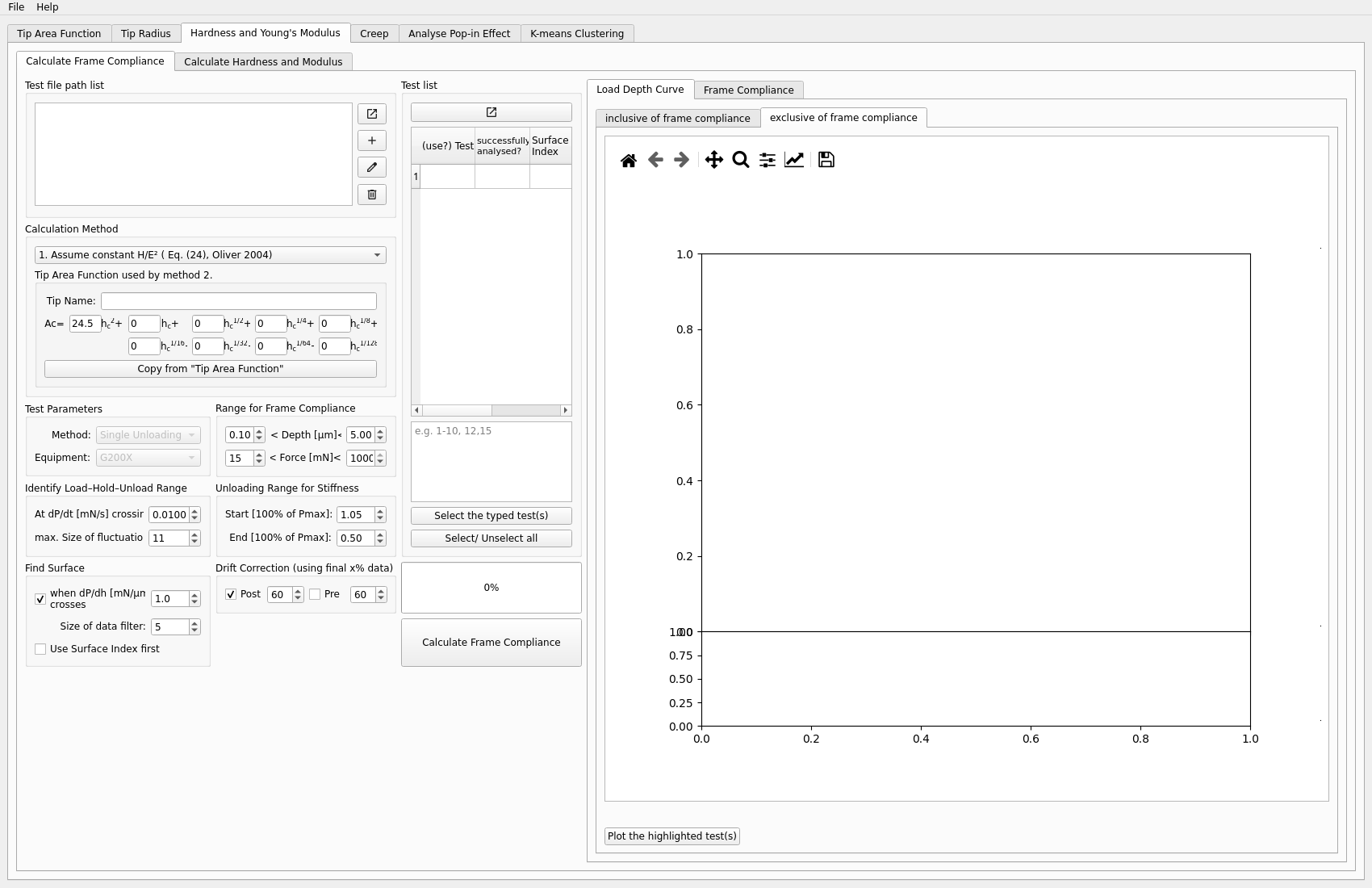
Several workflows in the GUI require frame compliance correction. This step is shared across multiple tabs.
Where it appears
Frame compliance is used in:
tabHE_FrameStiffnesstabCreep_FrameStiffnesstabTipRadius_FrameStiffnesstabPopIn_FrameStiffness
Inputs
frame-stiffness reference file or files
selected tests
fitting range for the stiffness evaluation
Typical steps
Load the frame-stiffness reference file or files.
Select the tests to use.
Adjust fitting ranges if necessary.
Calculate frame compliance.
Copy the result into the target analysis tab.
Outputs to inspect
Important checks include:
whether the selected tests form a stable stiffness trend
whether the fitted range is physically reasonable
whether the copied frame compliance value matches the target tab
Key plots
The most important plot here is the frame stiffness fit itself. Use it to check:
whether the selected tests follow a consistent trend
whether the fitting region is appropriate
whether outliers are influencing the result
Common problems
If frame compliance is not calibrated correctly, downstream results can shift in a systematic way.
Typical issues include:
selecting unsuitable tests
using a poor fitting range
forgetting to copy the result into the target analysis tab
mixing results from different datasets
Next step
After frame compliance is ready, continue to the relevant target page: